A plotter file out of any image.
Upload, check the layers, export for Cricut or xTool — in seconds, in the browser, without a design degree. Convert an image to SVG without learning Illustrator or Inkscape first.
Drop an image here — or
PNG, JPEG, WebP, HEIC, AVIF or PDF, up to 20 MB. No account, the result as an SVG right away.
Your image is vectorised once and not stored. Try an image — no account
5 files a day, free, no credit card needed. Or begin with a finished template from the community.
Plotter files for
- Cricut
- Silhouette
- Brother ScanNCut
- xTool
- Glowforge
From image to cut file in three steps
-
Upload
Drag in a PNG, JPEG, WebP, HEIC, AVIF or PDF. Your own artwork, the scan from your printer, the photo from your iPhone, your hand drawing — as long as the colours are recognisable.
-
Check the layers
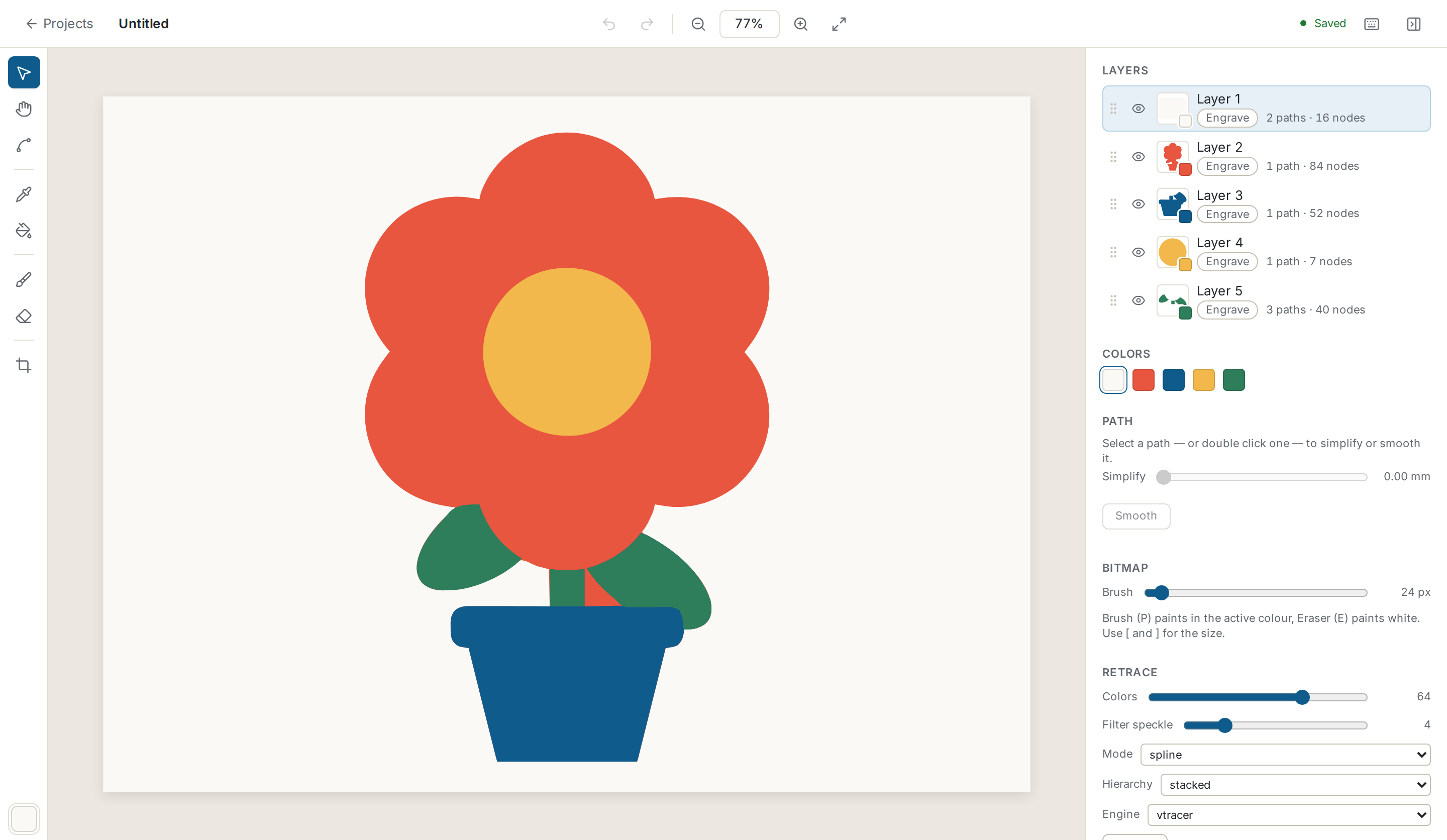
Every colour becomes a layer of its own. In the editor you merge layers, smooth paths and erase whatever should not be cut.
-
Export for your machine
Pick the Cricut or the xTool profile, drag the file over, import it into Design Space or XCS. Ready to cut.
Vectorise, edit, export — all in the browser
-
Multicolour, layer by layer
Every colour a layer of its own — ready to stack and to weed. No single group you have to take apart first.
-
Cricut profile for Design Space
Filled shapes instead of hairlines, inches as the unit, mat width taken into account. Design Space takes the file exactly as it is.
-
xTool laser profile for XCS
Millimetres, cut lines in red, no double laser passes over the same edge. Your plywood will thank you.
-
SVG editor in the browser
Merge colours, smooth paths, drag nodes, erase, re-vectorise — no install, no subscription for a second program.
-
Export as SVG, DXF, FCM, PNG, PDF
SVG for Design Space, DXF for Silhouette Studio without the Designer Edition, FCM for the Brother ScanNCut, PNG and PDF for everything in between.
-
Privacy without the small print
No tracking, no ad networks, no external fonts. Your artwork is yours, and it is never used for training.
Before, after, and what happens in between
A real example: the uploaded image, the vectorised file made from it, and the layers that come out.


Layers
- Background
- Petals
- Pot
- Flower centre
- Stem and leaves
You will usually delete the background — one click, and only the motif is left.
Finished plotter files from the community
Motifs other people have already vectorised and cut — with their layers, their measurements and the machine they were made for. One click and the template is in your projects.
-
 Christmas Angel Cut File – Cute Kawaii Angel with Crown and Star | SVG Christmas Plotter Design
Mit Namensnennung Jedes Gerät
-
 Santa with Gift Sack Cut File – Cute Kawaii Santa Claus with a Little Friend Peeking Out | SVG Christmas Plotter Design
Mit Namensnennung Jedes Gerät
-
 Saint Nicholas with Crozier Cut File – Cute Kawaii St. Nicholas with Mitre and Beard | SVG St. Nicholas Day Plotter Desi
Mit Namensnennung Jedes Gerät
-
 Saint Nicholas Cut File – Cute Kawaii St. Nicholas with Mitre and Beard | SVG St. Nicholas Day Plotter Design
Mit Namensnennung Jedes Gerät
-
 Weihnachtsmann auf Schlittschuhen Plotterdatei – Süßer Santa beim Eislaufen | SVG Weihnachten Winter Plotter Motiv
Mit Namensnennung Jedes Gerät
See all templates Templates for Cricut Templates for xTool
Who publishes here

Every author has a public profile with their templates, their machines and a link to their shop. Create your own profile
Coming up: Halloween
5 days to go until Halloween. Templates that suit the season — put together by the seasonal calendar.
Pricing: start free, more when you need it
Free
€0 forever
- 5 files a day
- SVG export
- The complete layer editor with its clean-up tools
Pro
€9.99 per month
- Unlimited files
- DXF, FCM, PNG and PDF on top
- Uploads up to 8000 px, batch upload, background removal
Final price, no VAT charged (§ 19 UStG, German small-business rule).
Common questions about plotter files and formats
Will the file open in Cricut Design Space?
Yes. Design Space imports SVG directly: “Upload” → pick the file → insert. Because every colour is a layer of its own, the pieces land on the mat already separated and you can assign each one its own material colour.
And in Silhouette Studio?
Silhouette Studio only opens SVG from the Designer Edition upwards; with the free basic version you take the DXF export — a Pro format that Studio reads without an upgrade. (You do not need the Business Edition for it: that one brings AI, EPS and CDR, several cutters and tiling.) DXF keeps the layers but not the fill colours; you set those in Studio.
How are the layers split up?
By colour. A motif with five colours becomes five layers, each with its own paths. In the editor you can merge two layers if they are going to be cut from the same vinyl colour, or delete one you do not want to cut at all — the background, for instance.
Which image files can I upload?
PNG, JPEG and WebP, plus HEIC and HEIF (the format an iPhone shoots in unless you change the setting), AVIF and PDF. Up to 20 MB per file. From a PDF we vectorise the first page — so a scan from your all-in-one printer needs no detour through an image program.
Which formats can I export?
SVG on every plan. With Pro also DXF (Silhouette, older software), FCM (Brother ScanNCut), PNG (previews, mockups) and PDF (print shops, sublimation). On top of that come the device profiles: Cricut in inches with filled shapes, xTool in millimetres with red cut lines, Brother ScanNCut in millimetres with black cut lines for CanvasWorkspace.
What happens to my images?
They stay in your account until you delete them. We do not look through them, do not pass them on and do not use them to train models. Vectorising runs on our own servers, with no external service. The details are in the privacy policy.
Which images vectorise well?
Motifs with clear areas of colour work best: clip art, logos, hand lettering, scanned drawings, illustrations. Photos with soft gradients turn into many small shapes — for those, turn the colour count down in the editor, or start from a finished template from the community.
May I sell templates from the community?
Every template says so: “Private” means for you alone, “Commercial” allows you to sell what you cut, “With attribution” does too, as long as you name the author. Passing on the file itself is never what is meant — the details are in the template terms.
Can I cancel Pro again?
Any time, in the billing portal, with two clicks. Pro runs until the end of the period you have already paid for. And if you do not like it in the first 30 days, write to us — you get your money back, no questions asked.